Get your highlights out of your Kindle
Your Kindle has been keeping a plain text file of every highlight you have ever made. Where it lives, how to read it, what quietly corrupts it, and how to turn it into notes you will actually reread.
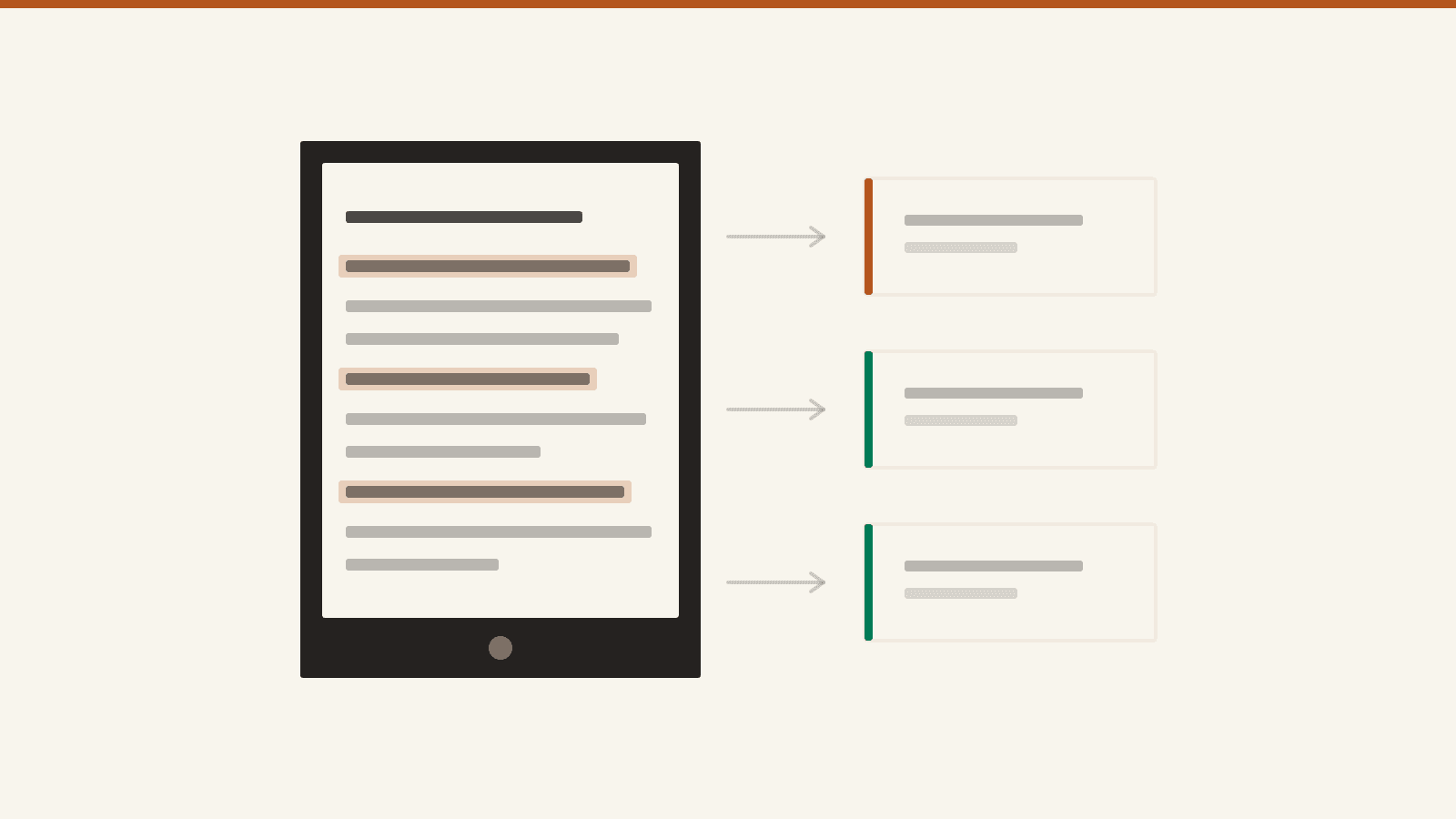
You have been highlighting for years. Ask where those highlights are and the honest answer is: two places, neither of which feels like yours.
Where they actually live
Amazon's notebook. Sign in at read.amazon.com/notebook and there they are, book by book. You can read them, and you can select and copy them by hand, one book at a time. It is a viewer, not an export.
A text file on the device. Plug the Kindle into a computer and it mounts as a plain drive. Inside documents sits a file called My Clippings.txt, and every highlight, note and bookmark you have ever made is in it, in the order you made them.
That second one is the one that is actually yours. No account, no network, no permission — the device writes it, and copying it off is the whole of the export.
Finding the file
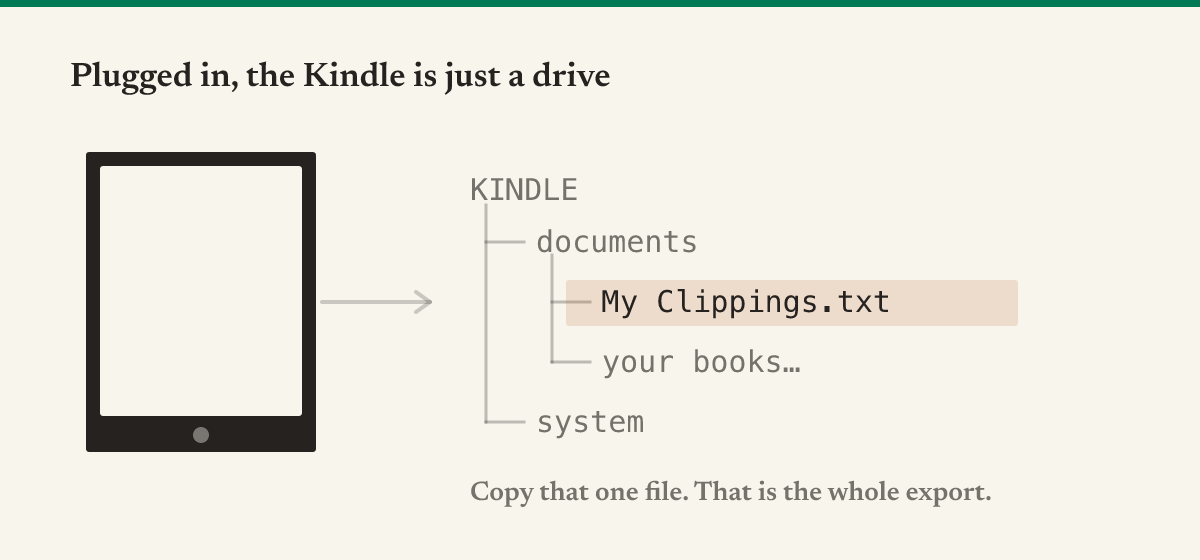
On a Mac the Kindle appears in the Finder sidebar under Locations; on Windows it shows up in This PC as a removable drive. Open documents and My Clippings.txt is sitting among your books. Copy it somewhere safe — that is it.
If the Kindle charges but never appears as a drive, it is almost always the cable. A great many USB cables carry power and no data, and they look exactly like the ones that do.
Reading what is inside
Every entry is five lines and always the same five:
The Making of the Atomic Bomb (Richard Rhodes)
- Your Highlight on page 214 | Location 3276-3278 | Added on Sunday, 12 May 2026 21:04:11

In London, where Southampton Row passes Russell Square, across from the
British Museum in Bloomsbury, Leo Szilard waited irritably one grey
Depression morning for the stoplight to change.
==========
Title and author, then a metadata line, then the text itself, then a row of equals signs. Worth knowing about that middle line:
- Page and location are not the same thing. Location is Amazon's own unit, roughly 128 characters, and it exists because reflowable text has no fixed pages. Books without a print edition often have no page number at all — only a location.
- Highlights, notes and bookmarks all live here. A note carries the text you typed; a bookmark carries nothing at all, just a position. If you are counting entries, bookmarks will inflate the number.
- The file is written in your Kindle's language. A device set to Spanish writes
Tu subrayado en la página 214, notYour Highlight on page 214. Most scripts and tutorials you will find assume English and quietly return nothing on anything else.
What silently fails
The clipping limit. Publishers cap how much of a book may be copied. Reach the cap and the notebook stops handing text over, and highlights beyond it arrive cut off, ending mid-sentence. Nothing warns you. The sentence simply stops.
Extending a highlight makes a second one.
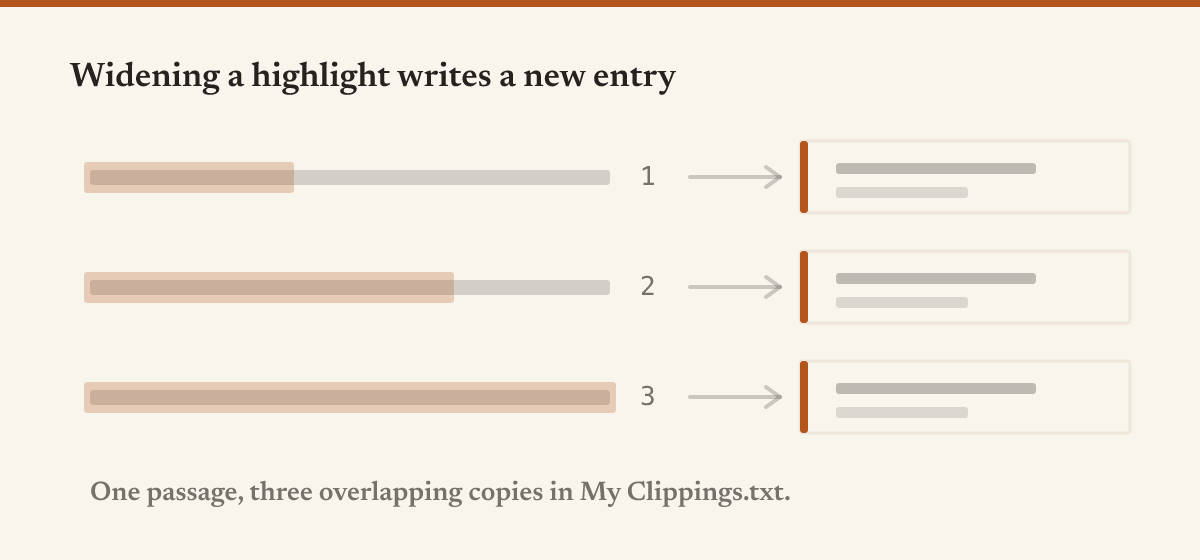
Drag a highlight wider and the Kindle appends a new entry rather than editing the old one. Do that three times over one paragraph and the file holds three overlapping copies of nearly the same sentence — all but the last of them incomplete.
Sideloaded books are missing from the notebook. It covers what you bought from Amazon. Documents you sent yourself — PDFs, EPUBs, anything from a converter — frequently never appear there. My Clippings.txt has them, because the device wrote the file, not the store.
Deleting a book does not delete its clippings. Usually a relief, occasionally a surprise: the file remembers titles you removed years ago, and it only ever grows.
The Kindle apps are a different animal
Reading on your phone or tablet produces highlights too, but there is no My Clippings.txt you can reach on either. Those live only on Amazon's side, visible in the notebook.
So if you read on both a Kindle and a phone, you have two partial sets: the file covers everything you highlighted on the device, including sideloaded documents, and the notebook covers everything you highlighted in a purchased book on any device. Neither is complete on its own, which is worth knowing before you conclude something went missing.
Back it up before anything else
My Clippings.txt only grows, and it is the single copy. A factory reset wipes it. So does the well-meaning cleanup that deletes everything in documents to free space.
It is a text file of a few megabytes after years of reading. Copy it somewhere durable now, and again whenever you plug the Kindle in. Nothing else in this post matters if the file is gone.
Turning it into something you will use
The file is honest but not pleasant. It is one flat chronological stream with every book interleaved, the same passage repeated at three lengths, and no structure beyond that row of equals signs.
The free highlights exporter takes it and hands it back grouped by book — Markdown for Obsidian, CSV for a spreadsheet, or a Notion import. It merges the extended duplicates and flags the entries the clipping limit truncated, so you can see what you would otherwise lose without noticing. The file never leaves your browser.
The part that actually matters
A highlight is a note to your future self that your future self almost never reads. Getting them off the device is the easy half. The half that changes anything is putting them somewhere you already pass by — the notes app you open daily, not a folder you will remember in March.
And highlights are not the only thing the Kindle writes down without being asked. Every word you look up in the dictionary goes into a second file, a database called vocab.db — with the sentence it appeared in — and that one plays by stranger rules than this one.
Going the other direction — getting things onto the Kindle in the first place — is the companion piece.